NodOn SIN-4-1-21
Relay switch with metering
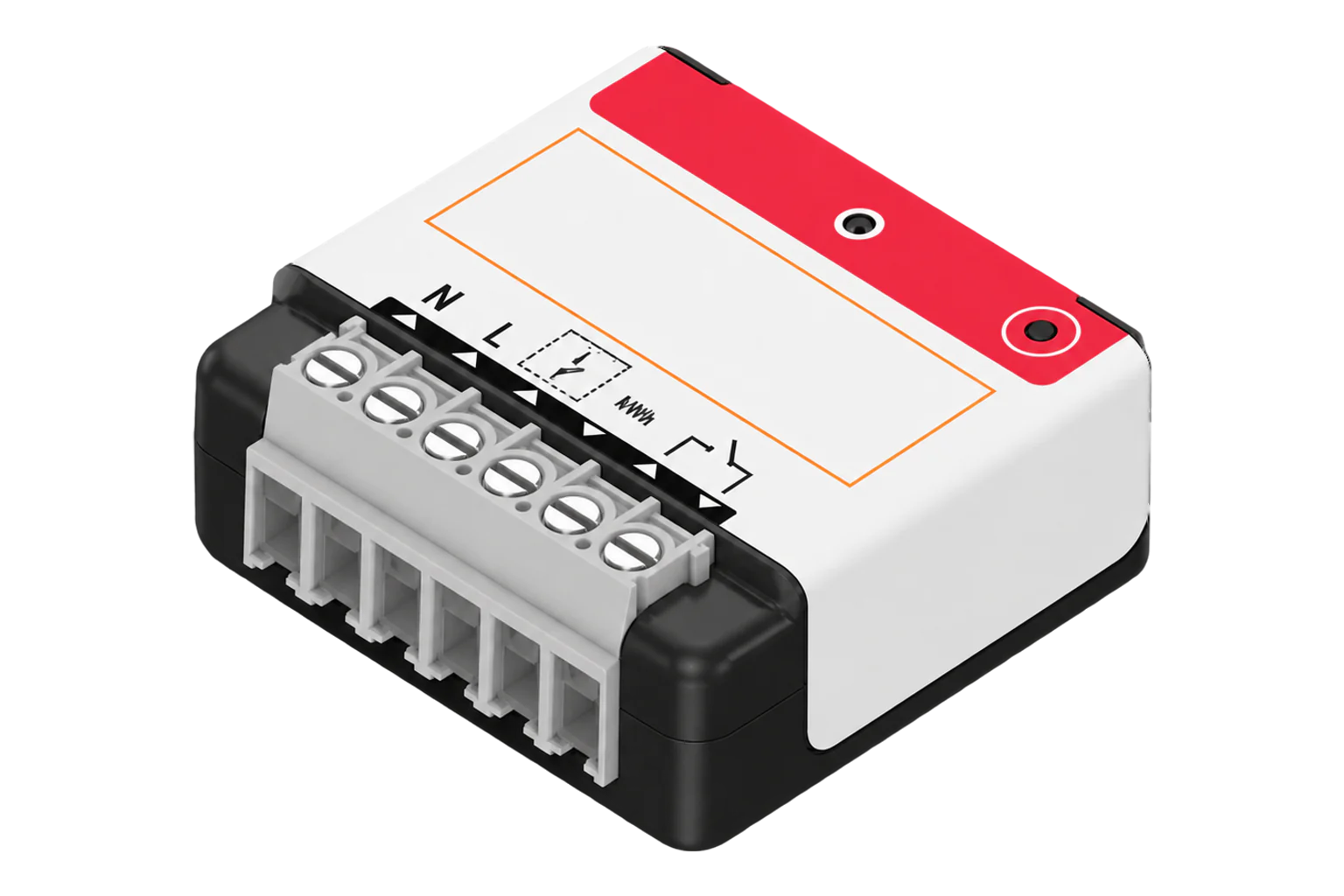
A flush-mount Zigbee 3.0 relay for 230 V loads up to 14 A and 3000 W that meters instantaneous power and cumulative energy, and can also work as a potential-free contact for a boiler or a gate.
Also sold asZigbee Multifunction Relay Switch with Metering
Compatibility
Compatible with EpiSensor Edge over Zigbee.
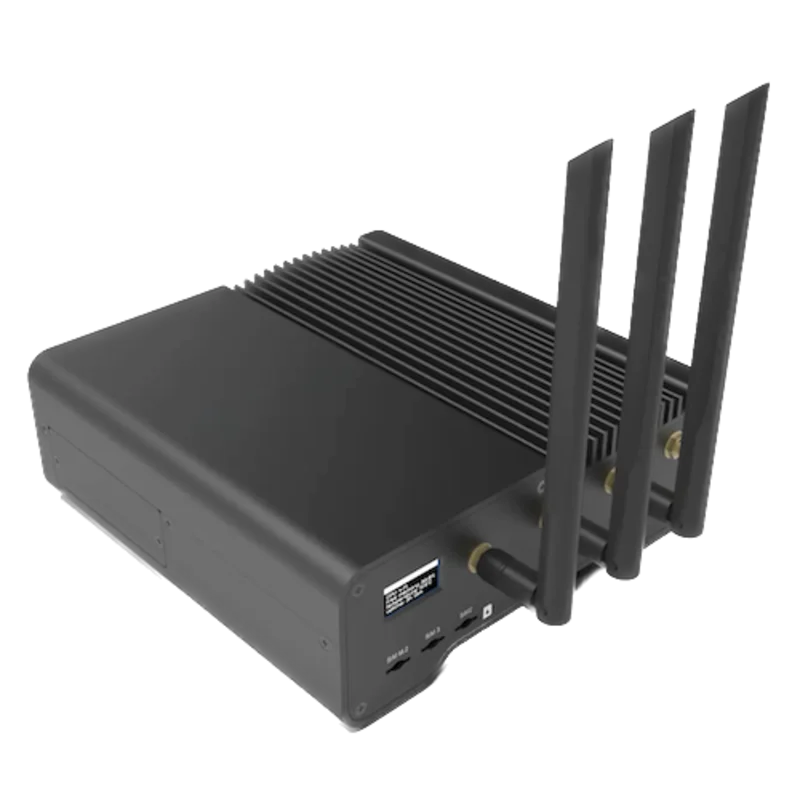
Pair it with the Zigbee radio on an EpiSensor Gateway. Edge reads it locally on the Gateway.
Edge reads 7 values from it, listed under Interface.
Connect it with
-
Gateway ZGW-20From €899 ex VAT Configure Gateway
Specifications
The SIN-4-1-21 is NodOn's Zigbee Multifunction Relay Switch with Metering. It runs from 230 V AC at 50 Hz, switches loads up to 14 A with a 3000 W ceiling and zero-crossing switching, and measures the instantaneous power (W) and cumulated energy (Wh) of the circuit it switches. It draws less than 1 W itself.12
- Power
- Mains. 230 V AC, 50 Hz from the switched circuit; it draws under 1 W.1
- Supply
- 230 V AC, 50 Hz1
- Switching capacity
- 230 V AC, 14 A1
- Maximum load
- 3000 W, with integrated zero crossing1
- Metering
- Instantaneous power (W) and cumulated energy (Wh)2
- Own consumption
- Less than 1 W1
- Wireless
- Zigbee 3.0, 2.4 GHz, +10 dBm maximum1
- Indoor range
- Up to 40 m1
- Operating temperature
- -20 to 40 °C in open air or a DIN Rail Box; -20 to 35 °C in a flush-mounted box1
- Protection
- IP20, indoor use only2
- Dimensions
- 40 × 44 × 16.9 mm2
- Weight
- 34 g2
- Terminals
- 1.5 to 4 mm² conductors, stripped 8 mm2
- Zigbee device type
- Smart Plug (0x0051)1
Where it is used
Switching and metering an electric water heater or immersion so its heating can be moved out of peak periods.
Electric boiler demand responseScheduling and metering individual electric heaters in small offices and branches, within its 14 A rating.
HVAC energy monitoring for commercial buildingsA potential-free contact on a boiler's thermostat input, where Edge sets the call for heat and the module does not meter.
Interface
Readings and settings, with units and ranges where NodOn publishes them. readable, readable and writable, writable only.45
| Reading | Unit | Range or values | Access |
|---|---|---|---|
| Measurements 2 | |||
| PowerInstantaneous active power of the switched load. | W | - | Read only |
| EnergyCumulative energy delivered to the load. | kWh | - | Read only |
| Controls 1 | |||
| RelaySwitches the line output. | - | ONOFFTOGGLE |
Read and write |
| Settings 3 | |||
| Power-on behaviourRelay state when mains returns after an outage. | - | offontoggleprevious |
Read and write |
| Wired switch typeToggle switch, push-button, or detected automatically. Firmware later than 3.4.0. | - | bistablemonostableauto_detect |
Read and write |
| Impulse durationPulse length for gates and strikes; 0 turns impulse mode off. Firmware later than 3.4.0. | ms | 0 to 10,000 ms | Read and write |
| Diagnostics 1 | |||
| IdentifyMakes the module identify itself. | - | identify |
Write only |
The relay, power and energy use standard Zigbee on/off and metering clusters. Impulse duration (0 to 10000 ms, 0 turns it off) and the wired switch type are NodOn manufacturer attributes on the on/off cluster, and the Zigbee2MQTT definition only offers them on firmware later than 3.4.0.5
Firmware 3.4.0 keeps the cumulative energy total when the module leaves a network and keeps the detected switch type through a power cycle. Earlier firmware can restart the energy count after a re-pair.3
Edge template
This JSON file applies the settings described below to a paired device. Edge supplies the device mapping; the file does not install a Zigbee driver or pair the device.
| Model | Connection | Points | Version | Updated | Download |
|---|---|---|---|---|---|
| SIN-4-1-21 | Zigbee | 3 + 2 settings | 1.0.0 | Download |
Downloads need a signed-in account with Edge download access.
Settings applied to SIN-4-1-21
Leaves the SIN-4-1-21's relay off when power returns and detects the wired switch type automatically. Edge reads the relay state, instantaneous power and cumulative energy. Impulse duration and export names stay site-specific.
- Power On Behavior
- off
- Switch Type On Off
- auto_detect
Use the template in Edge
- Import the JSON file
In Edge, open Settings, then Devices and Templates. Choose Import JSON and select the downloaded file. Confirm that the model and template name match your device.
- Pair the device, then apply its settings
Follow the pairing steps in Setup below. Once Edge identifies the exact model, choose Apply for the imported template and select the paired device. Check any firmware or manufacturer warning before applying.
- Confirm the result
Check the apply result and the settings on the device. Battery devices may need to wake before a command completes. Confirm a fresh reading or a deliberate sensor event before using it in an alarm or automation.
What Edge creates from the SIN-4-1-21 template3 sensors, 2 settings
Edge recognises the device by the identity below and creates these sensors and settings for it. The template file changes only the 2 settings it lists.
Zigbee identityNodOn/SIN-4-1-21
Sensors 3
| Sensor | Edge ID | Unit | Reading | Registry property |
|---|---|---|---|---|
| Relay Statewritable | 6701 | - | Binary | state |
| Power | 6702 | W | Instantaneous | power |
| Energy | 6703 | kWh | Cumulative | energy |
Settings 3
| Setting | Type | Accepts | Registry field |
|---|---|---|---|
| Power On Behavior | Choice | Off, On, Toggle, Previous | exposes.power_on_behavior |
| Impulse Mode (ms) | Number | 0 to 10000 ms, step 1 | exposes.impulse_mode_configuration |
| Switch Type | Choice | Bistable, Monostable, Auto Detect | exposes.switch_type_on_off |
Export enabled and the export identifier stay site-specific on every mapped sensor: the template leaves both to the site.
Commands 1
| Command | Applies to | Sends | Registry command |
|---|---|---|---|
| Switch | 6701 Relay State | Enabled = 0, Disabled = 1 | set-sensor |
Setup
-
Wire it and fit the shunt
With the power off at the board, wire neutral, line and the line output. Fit the supplied shunt across the two marked terminals when the module feeds the load. NodOn marks the shunt as optional according to use, and its boiler and gate diagrams are dry-contact installations without metering.2
-
Set impulse mode first for gates
For a gate, garage door or electric strike, power the module and press its button five times quickly. The LED pulses green to confirm impulse mode. Do this before pairing.2
-
Open pairing in Edge and power up
Open pairing on the Gateway's Zigbee network in Edge, then restore power. The LED blinks orange while the module looks for a network and turns green once it has joined.2
-
Retry if it times out
If it has not joined within 15 minutes the LED stays orange. Give the button one brief press to start searching again. To move it to another network, hold the button for more than 5 seconds until the LED blinks orange, then press once more to confirm the reset.2
-
Check the switch and one reading
Press the wired switch once so the module detects its type. Then switch a known load on from Edge and check that power reads close to its rating before you rely on the energy total.
Common questions
- Does the SIN-4-1-21 need a NodOn hub?
- No. It is a Zigbee 3.0 device, so it pairs with the Zigbee radio on an EpiSensor Gateway and Edge reads and switches it locally, without a NodOn hub or app.3
- Does it meter when used as a dry contact?
- No. NodOn's boiler and gate wiring diagrams use the output as a potential-free contact without consumption metering. Metering applies when the load is fed through the module with the shunt fitted.2
- Is its energy reading accurate enough for billing?
- NodOn publishes no accuracy class for the meter. Use it for load profiles and control decisions, and use a certified meter where the reading has to support a bill.1
- Why did the energy total restart after re-pairing?
- Before firmware 3.4.0 the cumulative energy reset when the module left its network. From 3.4.0 the total is kept.3
Related devices
Sources
- Zigbee Multifunction Relay Switch with Metering datasheet (SIN-4-1-21, V2, EN) (opens in a new tab)
- Zigbee Multifunction Relay Switch with Metering user guide (SIN-4-1-21-UG-V4) (opens in a new tab)
- Zigbee Multifunction Relay Switch with Metering (opens in a new tab)
- NodOn SIN-4-1-21 device documentation (opens in a new tab)
- NodOn device definitions (nodon.ts, v26.111.0) (opens in a new tab)
Further reading
Product names and trademarks belong to their owners. Publication does not imply endorsement or a commercial relationship.